A new Android phone usually feels clean and organized. There is plenty of storage available, apps are easy to find, and you rarely have to think about what is taking up space. After several months of everyday use, however, things can look very different. Screenshots start piling up, downloaded documents are forgotten, videos occupy several gigabytes, and old files remain hidden in folders you rarely open.
This is where a Phone Cleaner for Android can be useful. Rather than randomly deleting photos or uninstalling apps every time storage gets low, a cleaner can help you understand what is actually occupying your device. The goal isn’t to perform some magical speed boost. It is to make storage easier to inspect, organize, and clean.
In this guide, we’ll look at practical ways to clean an Android phone, which files deserve your attention, what you should avoid deleting, and how a cleaner app can simplify the process.
Why Does an Android Phone Need Cleaning?
Most people don’t deliberately fill their phones with unnecessary files. It happens gradually.
Think about a normal week of smartphone use. Someone sends you a video through a messaging app. You download a PDF and read it once. You take five screenshots while shopping online. A friend sends several photos. You record a video, edit it, and keep both versions. Then you download an APK, ZIP file, or document and forget about it.
None of these actions is a problem by itself.
The issue becomes noticeable after months of accumulated files.
Open Settings > Storage on an Android phone that has been used for a long time and you may find gigabytes spread across images, videos, documents, downloads, applications, and miscellaneous files.
Video is particularly easy to overlook. A handful of high-resolution videos can consume far more storage than hundreds of ordinary documents.
Downloads are another common source of clutter. The Downloads folder often becomes a digital drawer where everything gets placed and very little gets removed.
Cleaning your phone therefore isn’t simply about pressing a button marked “Clean.” A sensible cleanup starts by understanding where your storage is going.
Storage Space Can Disappear Surprisingly Quickly
Modern phones take high-resolution photos and videos, while social and messaging apps make sharing large media files effortless. That convenience has a storage cost.
Suppose you have:
- old screenshots you no longer need;
- downloaded videos;
- duplicate or similar photos;
- installation files;
- large documents;
- forgotten ZIP archives;
- media received through messaging apps.
Individually, these may seem insignificant. Together, they can occupy several gigabytes.
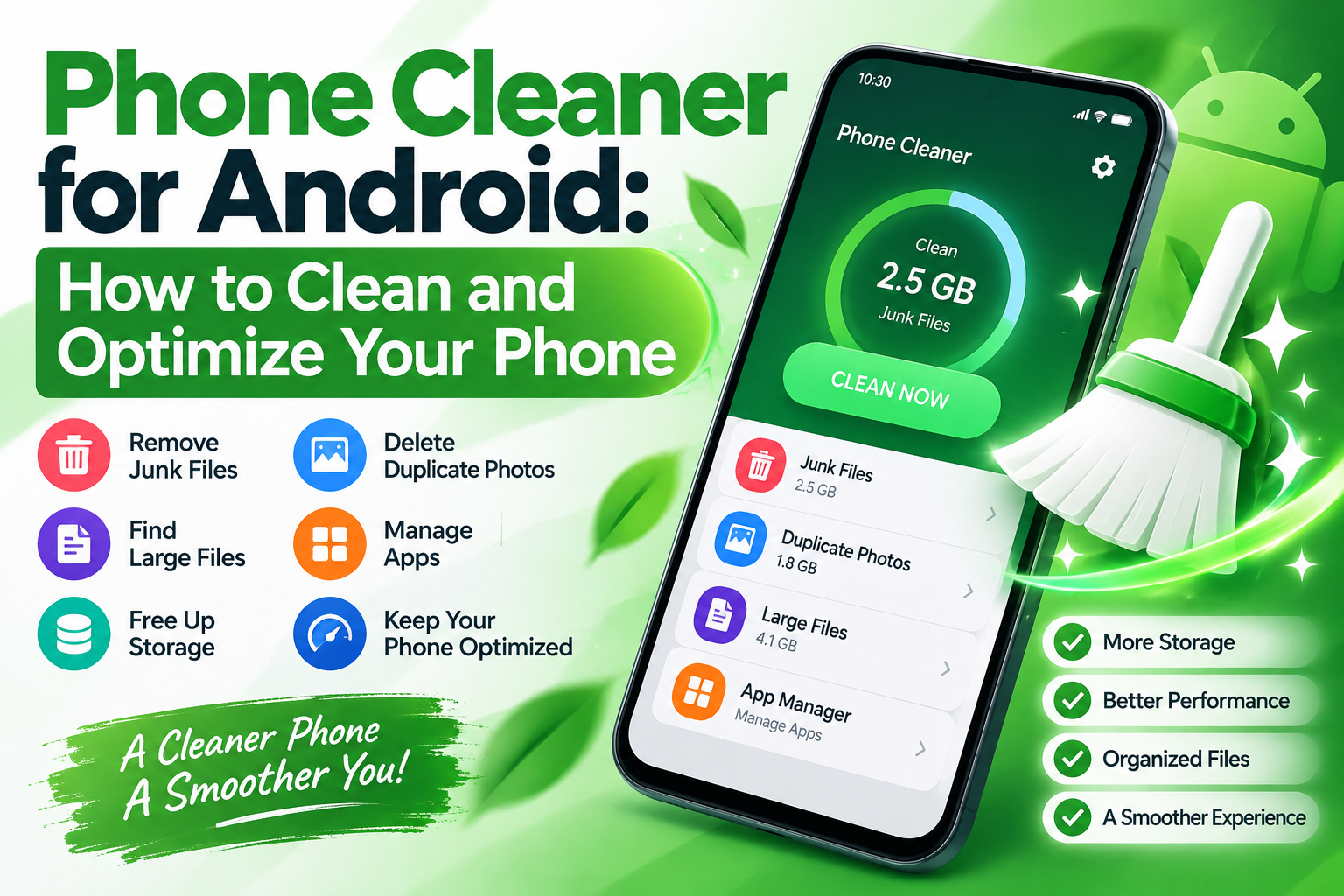
A Phone Cleaner for Android can make this easier to investigate by grouping files according to type or size instead of forcing you to browse through dozens of folders manually.
Cleaning and Speed Are Not the Same Thing
There is an important distinction worth making.
Freeing storage space and making a phone dramatically faster are not automatically the same thing.
Some cleaner apps have historically used exaggerated phrases such as “instant RAM boost,” “CPU cooling,” or claims that a single tap will transform the performance of a device.
Android does not work quite that simply.
A phone’s performance depends on several factors, including its processor, memory, Android version, available storage, installed applications, background activity, and battery condition.
Cleaning unnecessary files can certainly solve storage-related problems and make your device easier to manage. However, it cannot turn old hardware into a new flagship phone.
That is why a good cleanup strategy should focus on measurable benefits: finding unnecessary files, reclaiming space, and keeping storage organized.
How a Phone Cleaner for Android Helps Manage Storage
You could clean everything manually. Android already includes tools that let you inspect storage, uninstall applications, and delete files.
The challenge is convenience.
When thousands of files are spread across different folders, manually checking everything takes time. A cleaner can bring several useful views into one place.
Find Large Files First
If your objective is to recover storage quickly, start with large files.
Deleting 200 tiny files might free only a small amount of space, while removing one forgotten 2 GB video can make an immediate difference.
A useful storage cleaner should allow you to identify large files and review them before deletion.
Pay particular attention to:
- long videos;
- downloaded movies;
- screen recordings;
- large ZIP or archive files;
- old APK files;
- offline media;
- large PDF documents.
Don’t automatically delete everything the app identifies. Size alone doesn’t mean a file is unnecessary.
Review each important item before removing it.
Review Your Downloads Folder
The Downloads folder deserves its own cleanup routine.
People download restaurant menus, invoices, images, PDFs, tickets, documents, APK files, and attachments. Many are useful for a few minutes and then remain on the phone indefinitely.
Sort the folder by size or date.
Older files are not necessarily useless, but sorting this way makes forgotten downloads easier to spot.
Before deleting documents, check whether they contain anything important. Receipts, tax documents, travel information, work files, or personal records may need to be backed up rather than deleted.
Deal With Duplicate and Similar Photos Carefully
Photos are more complicated.
Exact duplicate detection can be useful, but “similar” does not mean “duplicate.”
Imagine taking six pictures of the same family moment. They may look nearly identical to an automated tool, but one might have better lighting while another captures a different expression.
A Phone Cleaner for Android may help surface potential duplicates or similar images, but the final decision should remain yours.
Review images visually before deletion.
A safer approach is to select the version you want to keep first and then remove the unwanted copies.
Screenshots Are an Easy Target
Screenshots often have a short useful life.
You capture a tracking number, social media post, product, map, error message, conversation, or confirmation page. A month later, many of those screenshots are no longer relevant.
Because screenshots usually live in their own folder, they are relatively easy to review.
Go through them periodically and remove anything that has served its purpose.
You may be surprised by how many have accumulated.
How to Use a Phone Cleaner for Android Safely
A cleaning tool is most useful when it gives you information and control.
It should not encourage you to blindly remove everything it finds.
Before deleting anything, follow a few simple principles.
1. Review Before You Delete
A file being old, large, or rarely accessed doesn’t necessarily mean it is junk.
You may have a large video from an important event or a document you need only once a year.
Whenever possible, use apps that let you see what has been selected before deletion.
If you don’t recognize a file, investigate it first.
2. Back Up Important Photos and Documents
Storage cleanup becomes much less stressful when valuable files are backed up.
Depending on your preferences, you might use cloud storage, a computer, an external drive, or another trusted backup solution.
The important point is simple: don’t make your phone the only location where irreplaceable files exist.
3. Be Careful With System Files
Deleting random folders because their names look unfamiliar is a bad strategy.
Android applications create folders and files for legitimate reasons. Removing something you don’t understand could cause an application to lose downloaded content or require data to be recreated.
A Phone Cleaner for Android should make cleanup simpler, not encourage risky deletion.
Stick to files you can identify unless you understand exactly what a particular folder contains.
4. Check App Permissions
Cleaner applications may need access to files or media to perform legitimate storage-management functions.
Before granting access, look at what the app is requesting and consider whether the permission makes sense for the feature you intend to use.
Android permissions and storage access have changed over time, so the exact experience can differ depending on your Android version and device manufacturer.
You can review app permissions through Android settings and remove permissions you no longer want an app to have.
5. Avoid Unrealistic Performance Claims
Be skeptical of any application promising impossible results.
No cleaner can add physical RAM, upgrade your processor, increase your phone’s storage hardware, or repair a degraded battery through software.
Useful cleaning features should be understandable.
Finding a 3 GB video and letting you delete it is a clear benefit. Showing that you recovered 3 GB is measurable.
Claims such as “your phone is now 500% faster” are much harder to substantiate.
Phone Cleaner for Android vs Manual Cleaning
Do you actually need a dedicated cleaner?
Not necessarily.
If you have relatively few files and enjoy managing your storage manually, Android’s built-in tools may be enough.
You can open your device settings to inspect storage and use a file manager to review folders.
Manual cleaning gives you direct control, but it can become tedious when your device contains thousands of files.
A cleaner is primarily about convenience.
For example, imagine that your phone has only 5 GB of free storage remaining. You want to recover 10 GB without spending an hour opening individual folders.
Instead of checking everything, you could first use a Phone Cleaner for Android to locate the largest videos, forgotten downloads, old installation packages, screenshots, and potential duplicate files.
You still make the deletion decisions. The cleaner simply helps narrow down where to look.
When Manual Cleaning Makes Sense
Manual cleaning works particularly well when:
- you know exactly which folder is using space;
- you only need to remove a few files;
- you prefer not to install another application;
- your phone already includes good storage-management tools.
For instance, if you know that several downloaded movies are consuming 15 GB, there is little reason to run a complete scan. Simply delete or move those files.
When a Cleaner Becomes Convenient
A cleaner becomes more useful when you don’t know what is taking up storage.
It can also save time when files are distributed across many folders.
The best approach may actually combine both methods: use a cleaner to identify candidates and then manually review what should be removed.
Best Phone Cleaner for Android Features to Look For
Not every cleaner needs dozens of features.
In fact, a straightforward app that performs a few storage-management tasks well can be more useful than an application filled with confusing buttons and exaggerated warnings.
Here are some features worth considering.
Storage Overview
A good starting screen should tell you how much storage is used and how much remains available.
Even better, it should help break usage down into understandable categories such as photos, videos, documents, audio, and other files.
This immediately answers the most important question: What is consuming my storage?
Large File Finder
This is one of the most practical features in any storage utility.
A large-file view allows you to focus on items capable of freeing meaningful amounts of space.
Sorting by file size makes the process even easier.
File Cleanup
A Phone Cleaner for Android should help you find files that may no longer be needed while still allowing you to review the selection.
Transparency matters.
You should know what will be deleted before you confirm an action.
Photo Management
Photo cleanup can include screenshots, exact duplicates, or similar images.
As mentioned earlier, similar-photo detection should be treated as a suggestion rather than an automatic deletion command.
Your photos may contain memories that software cannot evaluate.
App Management
Applications themselves can occupy substantial storage.
Some games and media applications consume several gigabytes. If you haven’t used an app for months, uninstalling it may recover more space than deleting hundreds of small files.
You can also review installed apps directly through Android settings.
Simple Interface
A cleaner shouldn’t make your phone feel more complicated.
Useful information should be easy to understand: storage used, storage available, large files found, and which items you’ve selected for deletion.
Too many warnings, flashing messages, or unnecessary notifications can make a utility harder to trust and use.
A Simple Monthly Android Cleaning Routine
You don’t need to clean your phone every day.
For many users, a short monthly check is enough.
Start by opening your storage settings. Look at how much free space remains and identify the largest categories.
Next, review your videos.
Videos frequently provide the biggest opportunity for recovering space. Delete unwanted recordings and consider moving important ones to backup storage.
Then check screenshots and downloads.
Remove screenshots that are no longer useful and review documents or installation files sitting in Downloads.
After that, look at installed applications.
If you see an app you haven’t used for a long time, consider whether you still need it. Remember that some apps contain locally stored data, so make sure anything important is backed up before uninstalling.
Finally, empty trash or recycle-bin folders where appropriate. Some gallery and file-management applications keep deleted items temporarily, meaning the storage may not be reclaimed immediately.
A Phone Cleaner for Android can help bring several parts of this routine together, especially large-file discovery and file organization.
Download Phone Cleaner for Android
If you’d rather have a dedicated tool help you inspect and organize your storage, you can try Phone Cleaner: Storage Cleaner.
The app can be useful when you want a simpler way to examine storage and identify files that may no longer be needed.
Download Phone Cleaner: Storage Cleaner from Google Play:
https://play.google.com/store/apps/details?id=com.sc.phonecleaner.storagecleaner
APKLow is an independent informational website and is not the developer or owner of this application. The link above directs you to the application’s Google Play listing. Review the current developer information, app permissions, privacy information, ratings, compatibility, and Play Store details before installing.
Frequently Asked Questions
Is a phone cleaner necessary for Android?
No. Android provides built-in storage and application management features, so a dedicated cleaner isn’t essential. A cleaner can be convenient if you want to locate large files, downloads, screenshots, and other storage-consuming content from a simpler interface.
Can a cleaner make my Android phone faster?
Cleaning unnecessary files can free storage and solve certain storage-related issues, but it does not upgrade your phone’s processor or RAM. Performance depends on hardware, software, available storage, applications, background processes, and several other factors.
Is it safe to delete junk files?
It depends on what is being classified as junk. Review files before deleting them and avoid removing anything important or unfamiliar. Back up valuable photos and documents first.
What should I delete when my Android storage is full?
Start with large videos, unwanted downloads, old screen recordings, unnecessary screenshots, installation files, and apps you no longer use. Large files usually produce faster storage savings than deleting many tiny files.
How often should I clean my phone?
There is no universal schedule. If you frequently download files, record videos, or receive lots of media, checking storage every few weeks can be useful. Otherwise, simply review your storage when available space starts becoming low.
Final Thoughts
Keeping an Android phone organized doesn’t require aggressive cleaning or constant optimization.
Most storage problems are easier to solve when you know exactly what is consuming the space. Start with large videos, downloads, screenshots, old applications, and other files you recognize. Back up anything important before deleting it.
A Phone Cleaner for Android can make this process more convenient by helping you locate potential cleanup opportunities in one place. The important part is to stay in control: review recommendations, understand what you’re deleting, and avoid treating every file labeled “junk” as automatically disposable.
A few minutes of sensible storage maintenance every month can prevent your phone from becoming an unorganized collection of forgotten downloads, screenshots, videos, and files.